One photo. One arm-heart pose.
Bicep Heart AI
Bicep Heart AI turns one adult photo into a 7–9 second vertical video with sound: flex an arm and form a heart with your other hand. Choose a short-sleeve or sleeveless photo; 720p starts at $9.99. Generation time varies.
720p is $9.99, or use a credit pack

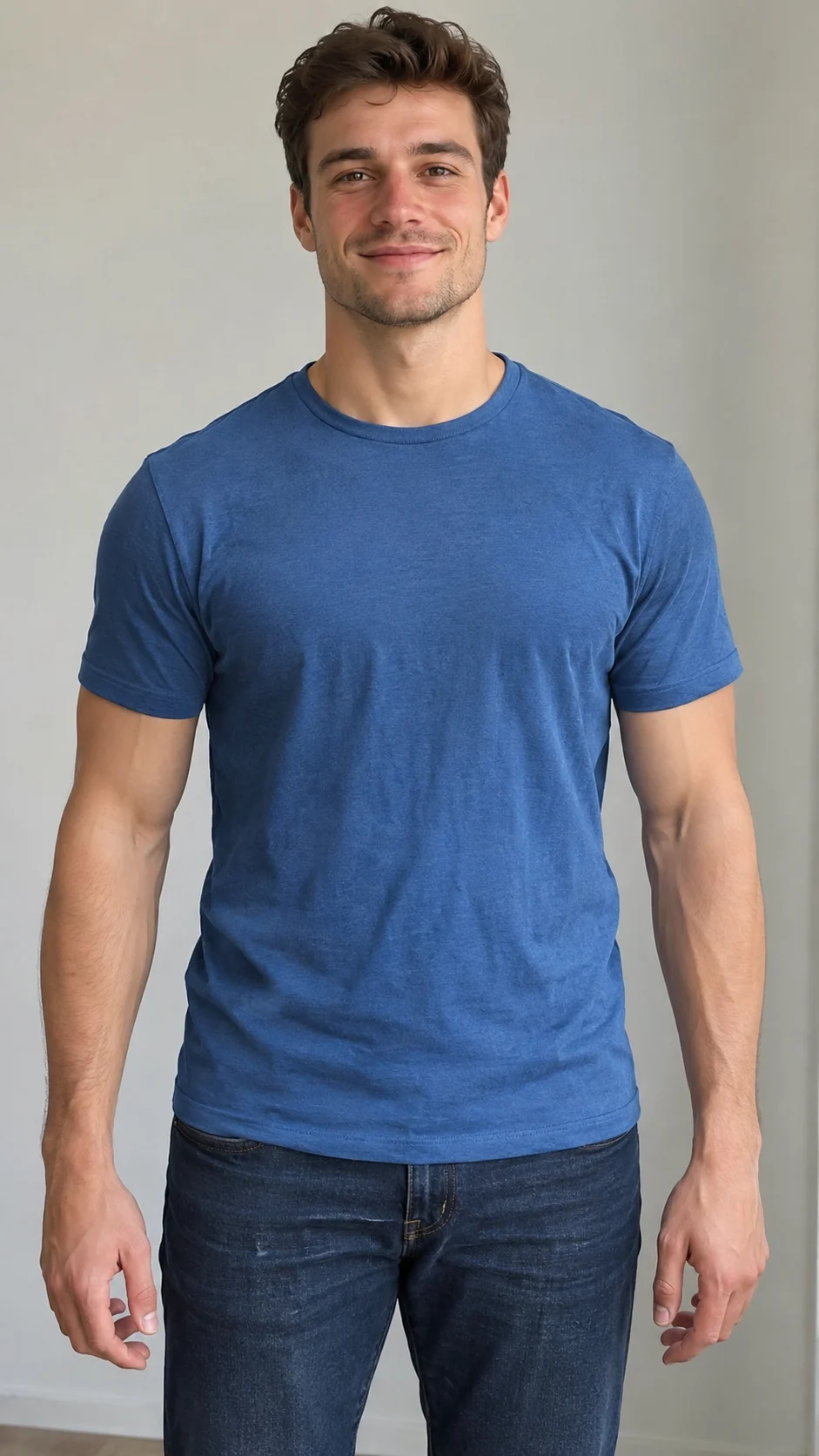
Real result · tap for soundOne photo
- 720p is $9.99
- Allow about 15 minutes
- Failed renders cost nothing
Two Bicep Heart AI examples
These are actual 720p results from the pictured inputs. Tap to play with sound.
Short sleeve · 720p
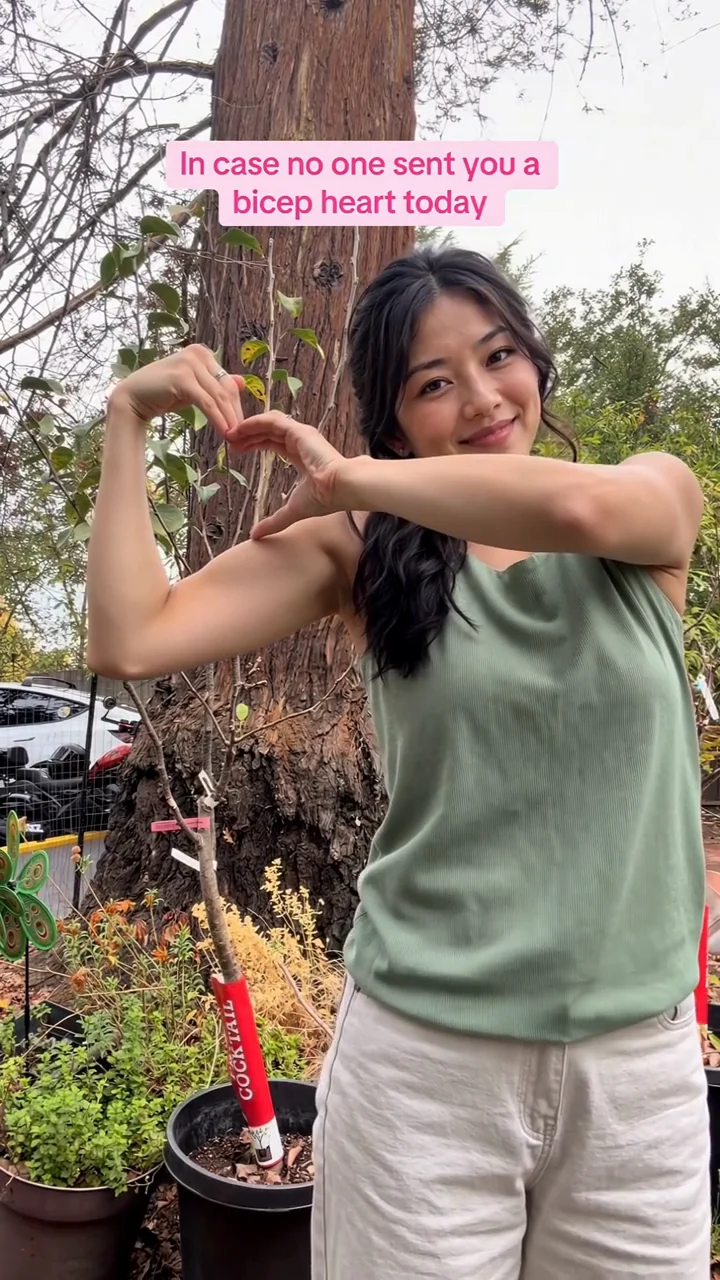
A 720p example made from one adult photo: a short-sleeve adjustment and a flexed-arm heart.
Input photos
Input photo Sleeveless · 720p
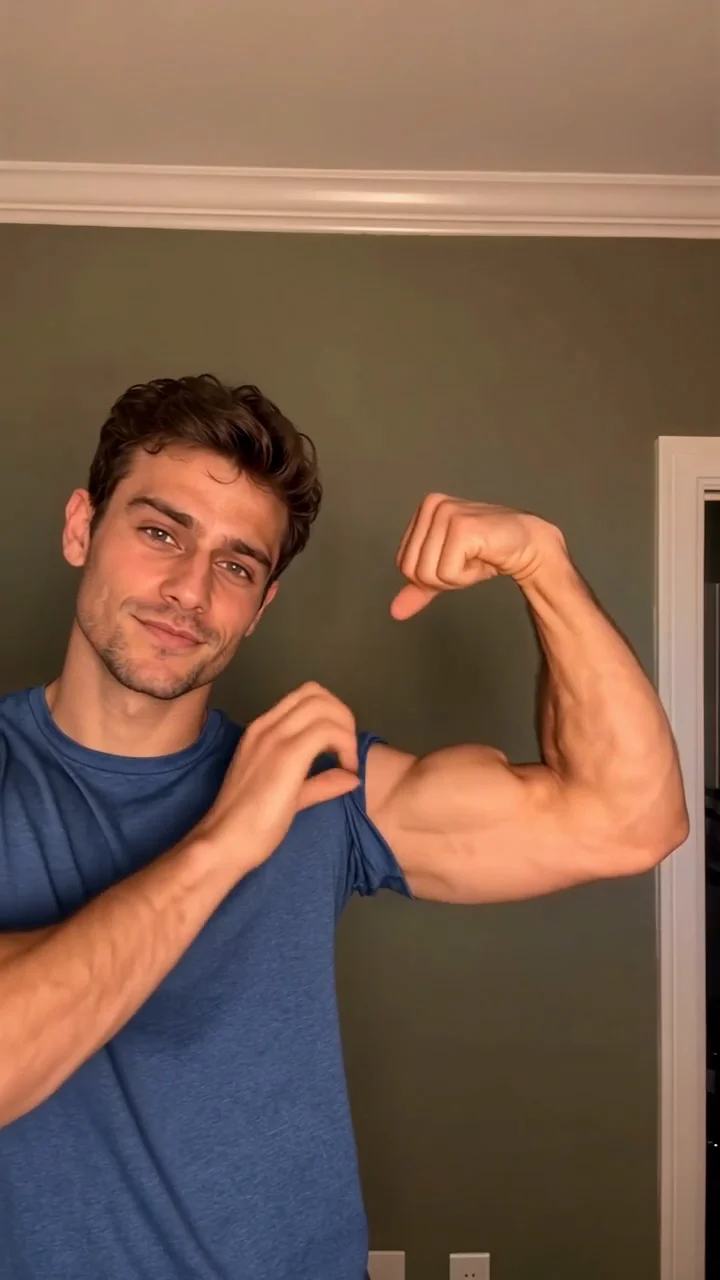
A 720p example made from one adult photo: an outdoor flexed-arm heart with no sleeve adjustment.
Input photos
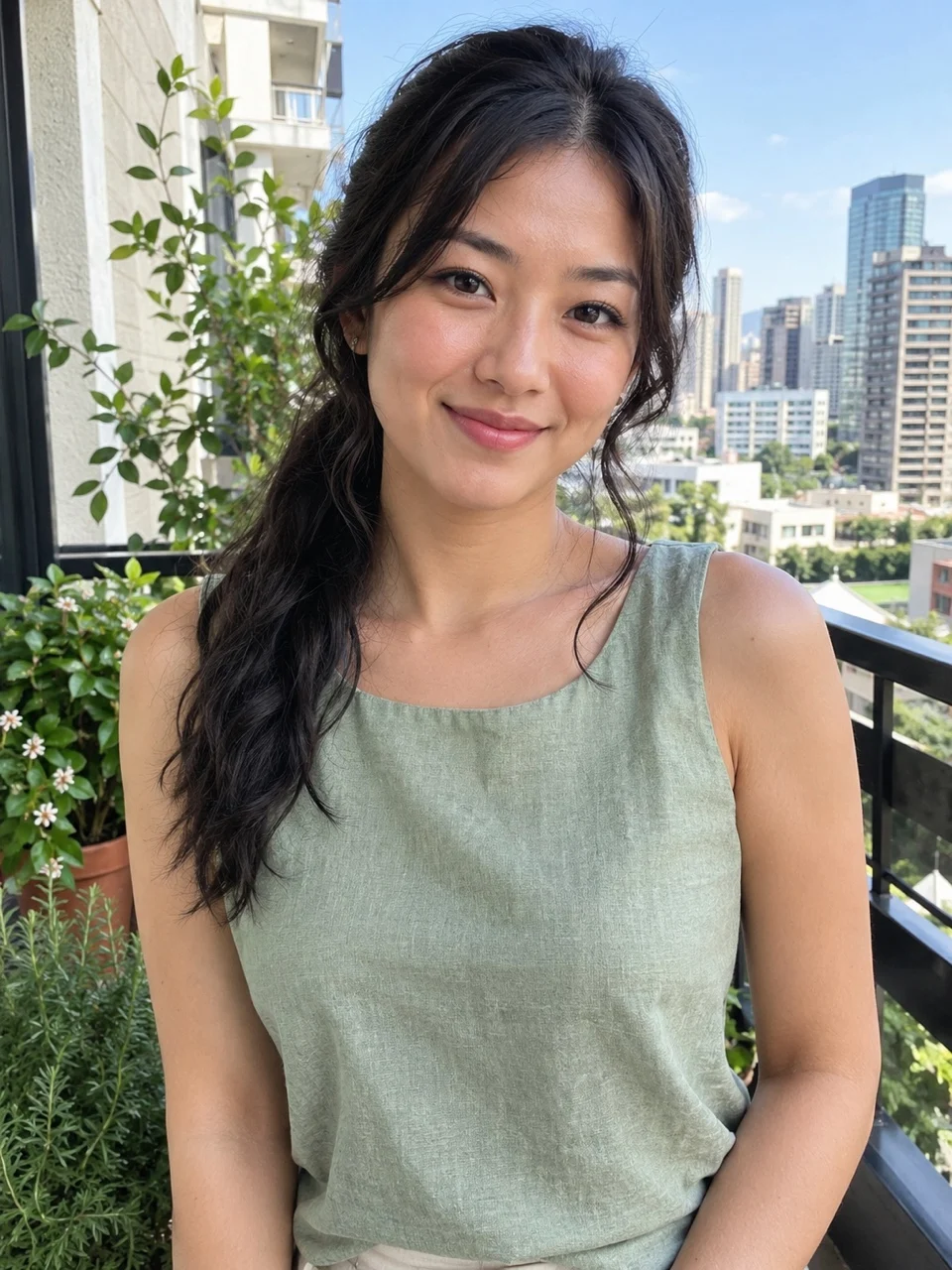
Input photo
How to make a Bicep Heart AI video
Choose one clear photo. The tool checks the sleeves and selects the matching motion. The Bicep Heart AI guide covers photo selection and troubleshooting.
Step 1: Choose a photo
Use a clear photo of one adult with their face, shoulders and upper arms visible. A short-sleeved shirt is recommended; a sleeveless top also works.
Step 2: Check the motion
Short sleeves use a sleeve adjustment followed by the arm-heart gesture. Sleeveless tops use a separate motion without pulling a sleeve.
Step 3: Choose a resolution
Choose 720p or 1080p and review the price before continuing.
Step 4: Watch and download
Watch the generated vertical MP4 with sound and check the likeness and hands before sharing.
Our stopwatch. Timed on the video model, from starting the task to the finished video: our eight test videos at 12 seconds and 720p took 2 min 32 s to 3 min 40 s.
720p is $9.99, or use a credit pack
Which Bicep Heart version is this?
Short sleeves
The person adjusts an existing short sleeve before flexing and forming the heart.
Sleeveless
The person raises the arm and forms the heart without a sleeve-pulling action.
Long sleeves
Long sleeves are not currently supported. Choose a short-sleeved or sleeveless photo.
The pose uses one flexed arm and the opposite hand to make a heart-shaped outline. This is a gesture, not an anatomical heart or a body transformation.
The short-sleeve clip is about 7 seconds; the sleeveless outdoor clip is about 9 seconds. The video model follows the chosen reference, so small details may vary.
Choose a photo for Bicep Heart AI
- One adult
- Clear face and upper arms
- Short sleeves recommended
- Sleeveless accepted
- Vertical MP4
Choose a clear, well-lit photo with one adult, a visible face and shoulders, and both upper arms visible. A waist-up photo is useful; a gym or full-body photo is not required.
If the sleeve type cannot be determined, use another photo. AI can change hands, muscles, clothing details or facial likeness, so check the finished video before sharing.
What happens in a Bicep Heart AI video?
Start
The person is shown in a vertical frame. Their appearance comes from the uploaded photo, while the motion follows the selected reference.
Flex
One arm bends upward. With short sleeves the clip also includes an adjustment of the existing sleeve.
Heart
The opposite hand moves toward the flexed arm to form the recognizable heart shape. Check the hand and arm together in the final clip.
Bicep Heart AI animates the person in your photo through a flex and a heart-shaped hand pose. In the short-sleeve example, the person first adjusts the sleeve, bends an arm and brings the other hand across to frame the bicep. Watch the example above to see the actual movement rather than expecting a long dance or a new muscular body.
The sleeveless example follows a different outdoor reference and skips the sleeve adjustment. It is about nine seconds rather than seven. Both examples are generated videos using their pictured inputs, not photographs of someone holding the pose. Your own result may vary in expression, hand placement, clothes or background.
Which photo should I use for Bicep Heart AI?
Face and light
Choose a sharp, evenly lit face without sunglasses, a hand or a sticker covering important features. An extreme side profile gives the model less detail to work with.
Arms and clothing
Keep the shoulders and upper arms in frame, with the sleeve edge visible if there is one.
One person
A single-person photo makes it clear whom to animate. Avoid group pictures, tiny faces, heavy filters and screenshots with interface elements over the person.
For Bicep Heart AI, choose one clear adult photo that shows the face, shoulders and both upper arms. A short-sleeved top is recommended because the motion can include the sleeve adjustment; a sleeveless top has its own version without that movement.
A waist-up picture is a practical choice because it shows more of the person than a tightly cropped face. The person does not have to pose like the example, be in a gym or already be flexing. Use a photo of yourself or a consenting adult.
How does Bicep Heart AI select a version?
Short-sleeve photo
Uses the approximately seven-second reference with the sleeve adjustment.
Sleeveless photo
Uses the approximately nine-second outdoor reference. There is no sleeve-pulling action in this version.
Long sleeve or unclear
The photo is not accepted for this effect. Choose a different photo.
Bicep Heart AI checks the visible clothing in your uploaded photo and selects the short-sleeve or sleeveless motion. You do not need to pick a template manually. A long sleeve is not supported because the available motions do not reliably preserve that clothing during the arm movement.
If the sleeve is hidden, outside the crop or too unclear to classify, the tool asks for another photo before an order is created. This protects you from paying for a version that does not match the picture. Try a well-lit waist-up image with a visible shirt sleeve or a clearly sleeveless top.
How to check a Bicep Heart AI result
Likeness
Compare the face, hair and visible outfit with the uploaded person. Small details can change during movement.
Movement
Check that the arm bends and the other hand meets it. The short and sleeveless references have different timing and settings.
Sound
Listen through the end and review the platform’s music rules. The sleeveless example has a short silent ending.
Before sharing a Bicep Heart AI result, play the whole clip with sound and compare the face to the input photo. Look at the beginning and the movement into the pose: an AI video can change a face, hairstyle, hand or piece of clothing as the person moves. The automatic check helps screen results, but it cannot guarantee that every frame will look exactly like the photo.
Look at the flexed arm and the opposite hand together. The heart should be recognizable without an extra finger, a misplaced wrist or a sleeve appearing where the photo had none. If a completed result looks wrong, contact support with the order details. If generation fails, the applicable credits return to your balance; this is not a refund to the card.
Bicep Heart AI price
One video
$9.99
- Pay once for the video you make
- No subscription, nothing renews
- Failed renders cost nothing
Credit packs
from $29
- 100 credits to start
- A default video is 30 credits
- Credits never expire
The 720p video costs $9.99 or 30 credits; 1080p costs $14.99 or 45 credits. There is no free personalized preview. The examples were generated at 720p.
If a generation fails, the applicable credits are returned to your balance. A credit refund is not a card refund. See all prices.
Sharing your Bicep Heart AI video
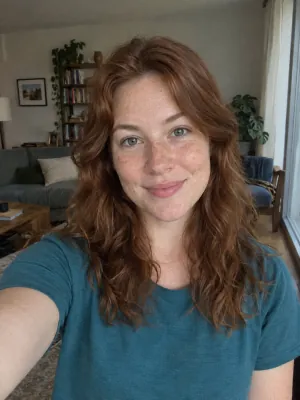
Works: One person, straight on, even light
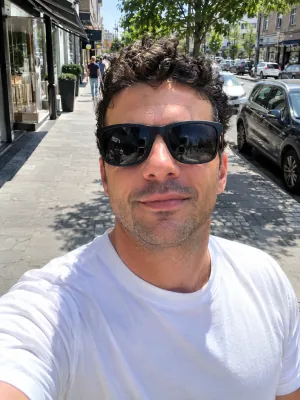
Avoid: Sunglasses
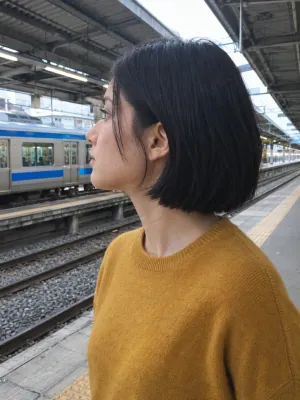
Avoid: Side profile
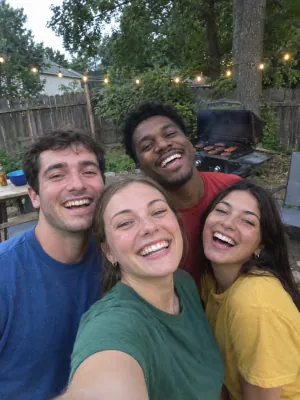
Avoid: Group photo

Avoid: Dark or backlit
The result is an AI-generated fictional clip. Use a photo of an adult who agrees to be included and label the video as AI-generated when you share it.
Uploaded photos are stored privately and deleted after 30 days. See our privacy policy. Check the sound and platform music rules before posting.
Private photos Deleted automatically after 30 days.
Failed renders cost nothing The credits go back on their own.
One-time payments No subscription. Nothing renews.
Secure checkout Paid through Stripe. We never see your card.
Bicep Heart AI questions
How do I make the Bicep Heart trend from my photo?
Upload one clear adult photo, choose a resolution and follow the purchase steps. The tool selects a motion based on whether your photo shows short sleeves or no sleeves.
Do I need a gym photo or a full-body photo?
Bicep Heart AI does not require a gym photo. A clear waist-up photo showing the face, shoulders and both upper arms is suitable; a full-body photo is optional.
Can I use a long-sleeved photo?
Bicep Heart AI does not support long-sleeved photos in this version. Use a short-sleeved or sleeveless photo instead.
Do I need to write a prompt or upload a video?
No. The tool uses a prepared motion and prompt; you upload your photo.
Is it free?
There is no free personalized preview. The 720p video costs $9.99 or 30 credits, and 1080p costs $14.99 or 45 credits.
What if the face or hands look wrong?
Choose a clear photo with the face and upper arms visible. AI can still change facial or hand details; contact support about a completed result you are unhappy with.
Does the video have sound?
Sound is added to the generated video. The sleeveless example ends with a short silent section because its original audio is shorter than the generated clip.
Can I share the video on TikTok or Instagram?
The video is a vertical MP4 that you can download. Label the clip as AI-generated and check the platform’s music rules before sharing.
Make your Bicep Heart video
Choose one clear short-sleeved or sleeveless photo.