Fancy Cafe AI Video: How to Make the Small Table Meme With Two Photos
Make the Fancy Cafe AI video with your own face and a friend. See the tiny-table joke, a real example, photo tips, a copy-ready prompt, prices and how to share.
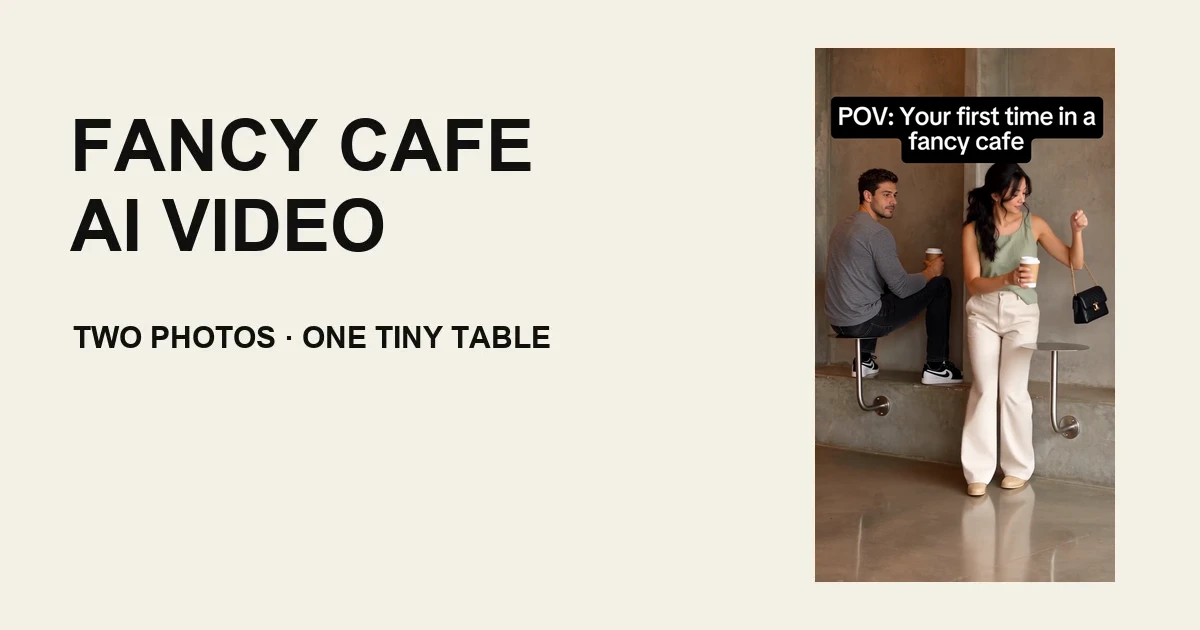
The Fancy Cafe AI video puts you and a friend into the viral tiny-table joke. One person sits on a little round table in a minimalist concrete café, holding a coffee. A second person arrives and sits on the long bench. The first person notices, realizes their mistake and quietly moves down beside them. Add two adult photos on the Fancy Cafe AI page to make a 15-second vertical version with sound.
What is the Fancy Cafe AI video trend?
The concrete café version of the Fancy Cafe AI video is a joke about furniture that is not immediately obvious. The bench is a low ledge against a bare concrete wall, and the tables are small metal circles on curved supports. Someone treats one table as a seat. Then another person sits on the ledge and uses the second table for a drink, making the mistake plain without a lengthy explanation.
One widely shared example is this TikTok post, which had approximately 9.8 million views when checked on November 3, 2026. Other accounts posted versions with the same setting and different people. We have not established who first created the scene, so the view count is a snapshot of that post, not a claim that it started the trend.
The small-table joke, scene by scene
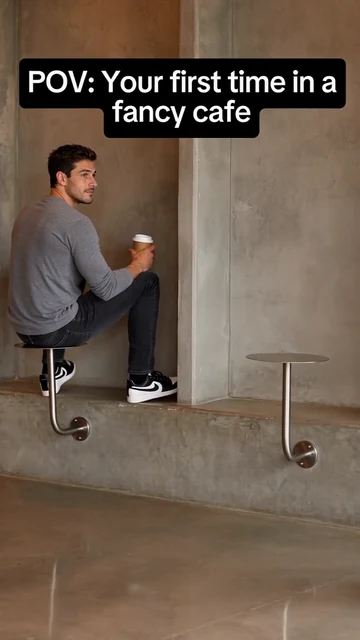
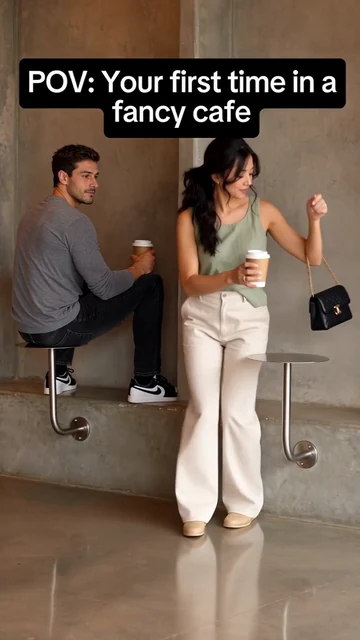
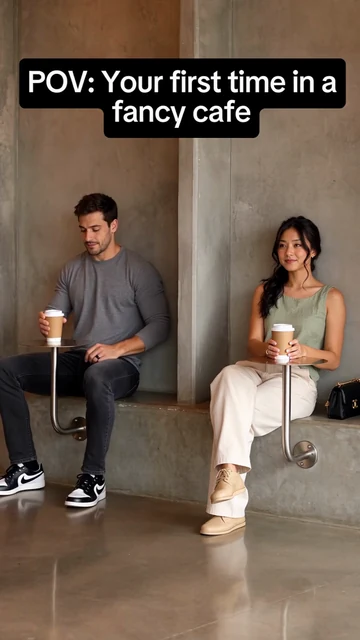
The scene is easiest to recognize by three visual beats. These frames are from our single 720p example, made with two AI-generated adult photos; the timestamps describe this example, not every version of the meme.
First, the mistake. The person on the left is perched on the little table with a cup. The concrete ledge is directly behind them, but they have not used it as a seat.
Then, the arrival. The second person comes in from the right carrying a cup and settles onto the low bench.
Finally, the realization. The first person moves off the table onto the ledge.
See the two photos and the actual result
This example uses two separate AI-generated adult photos. Photo 1 becomes the person on the table; photo 2 becomes the person who enters. Watch the video with sound and compare the result with both photos before deciding if the effect is what you want.
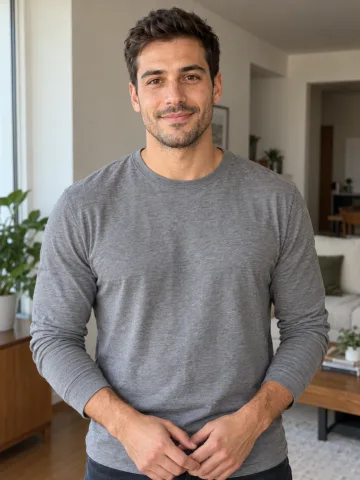 Photo 1
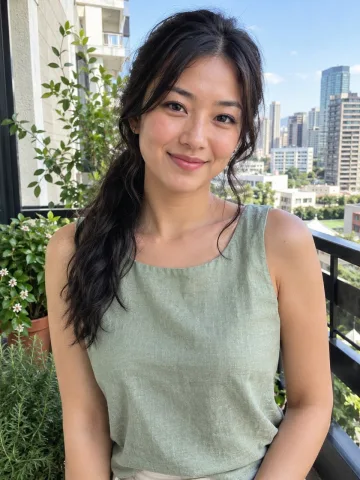 Photo 2
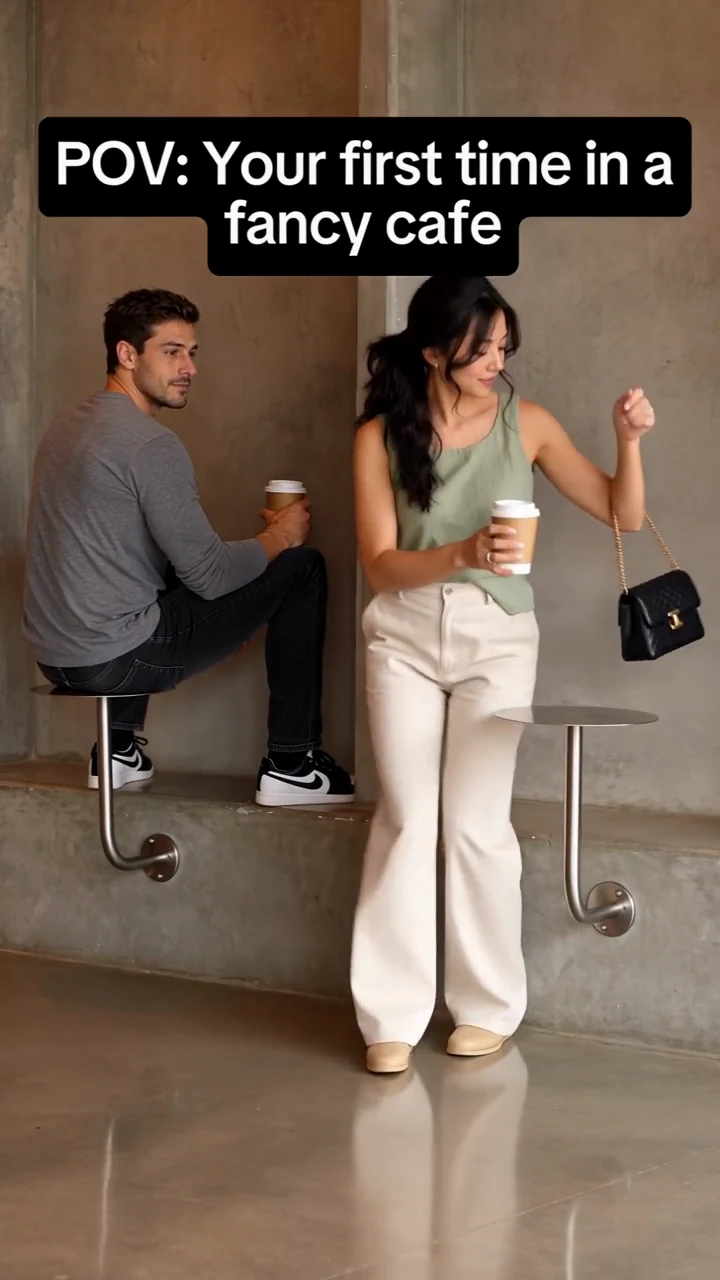 The video
Faces in this wide scene are smaller than in a close-up. Hair, clothing, hands and facial details can change as someone turns or moves; a clear photo helps, but it does not guarantee a frame-perfect match. The public example is 720p. The 1080p option has not been used to produce a separate example shown here.
How to make a Fancy Cafe AI video with your photos
- Open the tool and watch the example. On the Fancy Cafe AI page, play the example with sound to check the concrete café, the punchline and the two roles.
- Choose the person on the table. Upload one photo of that adult to the first photo slot. This person starts on the little round table and later moves down to the bench.
- Choose the person who walks in. Upload a different adult's photo to the second slot. This person enters from the right with a cup and sits on the bench.
- Choose the output. The default is 720p. Select 1080p if you prefer the higher-resolution option. Both choices use the same 15-second vertical scene and include sound.
- Make and download. Complete the purchase or use credits. When the video is ready, play it with sound, check both people and use the download button to save the MP4.
Which photos work best?
Choose one adult per image, with a clear face, visible hair and even light. A front-facing or slightly turned photo gives a good view of the features you want to recognize. You do not need to photograph anyone inside a café: choose a picture where the person is easy to see rather than matching the background.
A clear selfie can work for each person. A waist-up or full-body photo provides more information about the person's clothing, which matters in a wide shot. If a photo only shows a face and shoulders, trousers and shoes are not visible to the tool and may look different in the result. Avoid blurred or very dark faces, sunglasses hiding the eyes, extreme profiles and group pictures where it is unclear which person to use. Put different people in the two slots and use photos with their permission.
Fancy Cafe AI video prompt to try yourself
The prompt below describes the scene for someone trying a general AI video tool. It is a starting point, not a guarantee of the same camera angle, identity, exact timing or soundtrack. If the tool supports image references, attach one permitted photo per person and follow that tool's instructions for assigning each photo. The Fancy Cafe AI page does not require you to paste a prompt.
A vertical, realistic comedy video in a minimalist concrete café. In a fixed wide shot, a person with a coffee sits awkwardly on a tiny round table beside a low bench. A second person walks in with a cup and sits on the bench. The first person notices, pauses, realizes the mistake, gets down carefully and sits on the bench too. Keep the two people distinct, keep both cups and the furniture in view, and let the joke play out naturally without camera cuts.
Price, resolution and sound
The Fancy Cafe AI video costs $9.99 or 30 credits for 720p and $14.99 or 45 credits for 1080p. The default is 720p, and the finished video is approximately 15 seconds in a vertical 9:16 MP4. The 720p example above shows the scene and sound before purchase. There is no free personalized preview.
The video includes the fixed scene's music. Play the example to hear it: this version does not offer a control to upload a different track, generate personal voices or adjust the timing. If you want captions, dialogue or extra sounds, download the finished MP4 and use a separate editor. Check the music and AI disclosure rules of the platform where you share it.
If a generation fails, charged credits return to your balance; a credit refund is not a refund to your payment card. If a completed video does not look like the person in the photo, contact support with the order details so the result can be reviewed.
What to check before sharing
| Check | What to look for |
|---|---|
| Two people | Each role should look like the person in that role's photo, without the two faces being confused. |
| Clothing and hair | Compare visible clothing and hair with the photos, particularly during head turns. |
| The furniture | The small round surfaces should read as tables and the long concrete ledge as the bench. |
| The punchline | The second person sits on the bench before the first person moves off the table. |
| Hands and cups | Watch the cups and hands through the movement for changes or odd shapes. |
| Sound and format | Play the full MP4 with sound, then check the vertical preview on your phone. |
Captions and sharing ideas
The scene already carries the first-time-at-a-fancy-cafe setup. Keep any additional caption short enough that it does not cover the people or the small tables. For example: “I thought that was a chair” or “We understood the assignment differently.” Use the preview to position text where the action stays visible.
After downloading, open TikTok, Instagram Reels or YouTube Shorts and choose the MP4 from your device. Review the sound and crop in the app before posting; avoid trimming away the moment the first person notices the bench. Label the clip as AI-generated as required by the platform, and use photos of people who agreed to appear.
Fancy Cafe AI video questions
Is this the video where someone sits on a small table?
Yes. The scene shows a person on the little round table and another person sitting on the low concrete bench, followed by the first person's realization.
Do I need full-body photos for the Fancy Cafe AI video?
No. You can upload one clear selfie per adult. A waist-up or full-body photo can show more of the outfit; clothing outside the photo may be inferred.
Can I make the video with one photo or a pet?
This version needs two adult photos and does not offer a solo or pet option. Each photo fills one of the two roles.
Can I make the Fancy Cafe AI video for free?
There is no free personalized preview on this page. The example is free to watch; a personalized 720p video costs $9.99 or 30 credits, and 1080p costs $14.99 or 45 credits.
Do I need a prompt or the original clip?
No. The tool page already offers the fixed scene; add the two photos and choose a resolution. The prompt above is for people experimenting separately.
Does it include music?
Yes. The downloadable video includes the scene's fixed soundtrack. Play the example above to hear it; custom music and personalized voices are not offered in the tool.